
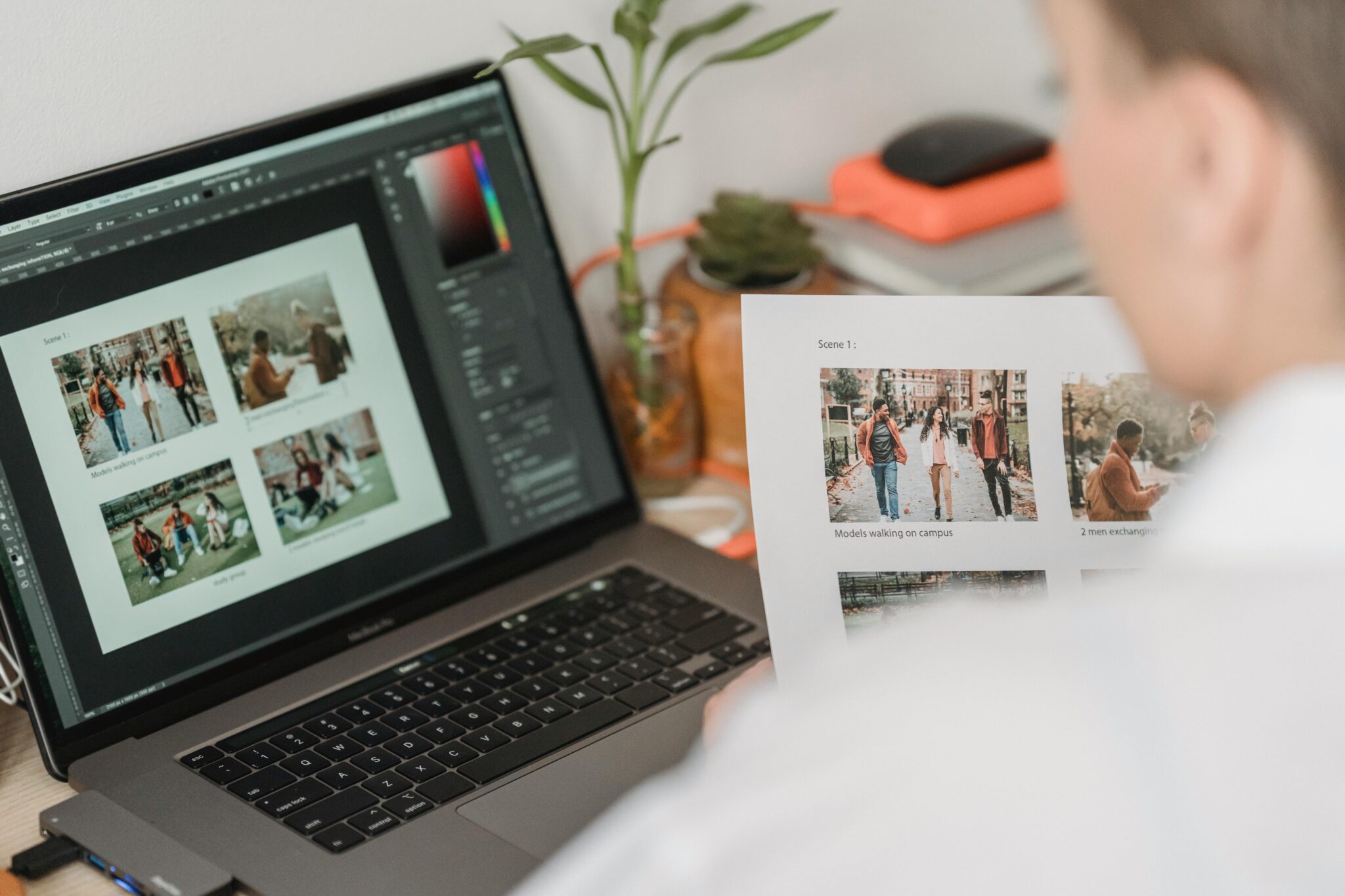
Image Source: Pexels
Many people assume copying text from images is a hassle, but it’s actually one of the fastest ways to stay organized during a busy workday. You don’t need special equipment or long workflows to turn photos, screenshots, and whiteboard snapshots into clean, editable text.
In fact, once you learn a few simple techniques, you’ll wonder why you ever retyped anything manually. This guide shows you how to make image‑to‑text capture effortless so you can move through your day with more speed and less frustration.
Mobile Image Text Capture
Capturing text with your phone is the quickest option when you are on the go. Most camera apps and scanning tools can instantly detect text from whiteboards, handouts, and printed pages. A few small adjustments can help you get sharper results and reduce errors.
Here are some simple ways to improve your mobile captures:
- Avoid shadows
- Hold your phone steady
- Keep the image centered
Desktop Workflow to Move Faster
When you sit down at your computer, desktop tools give you more control for editing and polishing text. Screenshot tools and built‑in OCR features make it easy to extract paragraphs, lists, and even tables. Adding a quick review step helps you catch spacing issues or stray characters before you share your notes.
A helpful walkthrough can show you exactly how to copy text from any image using step‑by‑step instructions, and the guide from TechSmith offers a smooth example that fits neatly into most desktop workflows.
Getting More Organized With Extracted Text
Once you start collecting text from images regularly, you’ll notice how much easier it becomes to organize your thoughts. Many professionals build small routines like sending captured text directly into project folders or tagging it in their notes app. These habits help you keep related ideas together and reduce time spent hunting for old details.
A clean workflow also makes collaboration smoother, since teammates can quickly understand the information you pulled from visuals. With a few tweaks, your extracted text becomes more than a copy; it becomes a usable asset for planning, reporting, and decision making.
Accuracy and Privacy Considerations
Even strong OCR tools can misread characters when images are low contrast or tilted. A quick scan helps catch those minor errors before you send off a doc or message. If you are working with sensitive content, using local tools instead of online converters keeps your information safer.
There are a few easy habits that can boost accuracy and protect your data:
- Crop out the unnecessary background
- Check key numbers and names
- Delete sensitive images after use
Using Image Text Tools to Simplify Your Workday
Copying text from images isn’t just a convenience; it is a workflow upgrade. The more you practice with these tools, the faster and cleaner your results become. Many professionals find that once they adopt these habits, their notes stay more organized and their follow‑ups get faster.
For more practical tips like this, explore the latest posts on the TechSmith blog and continue building efficient workflows that support your daily productivity.