
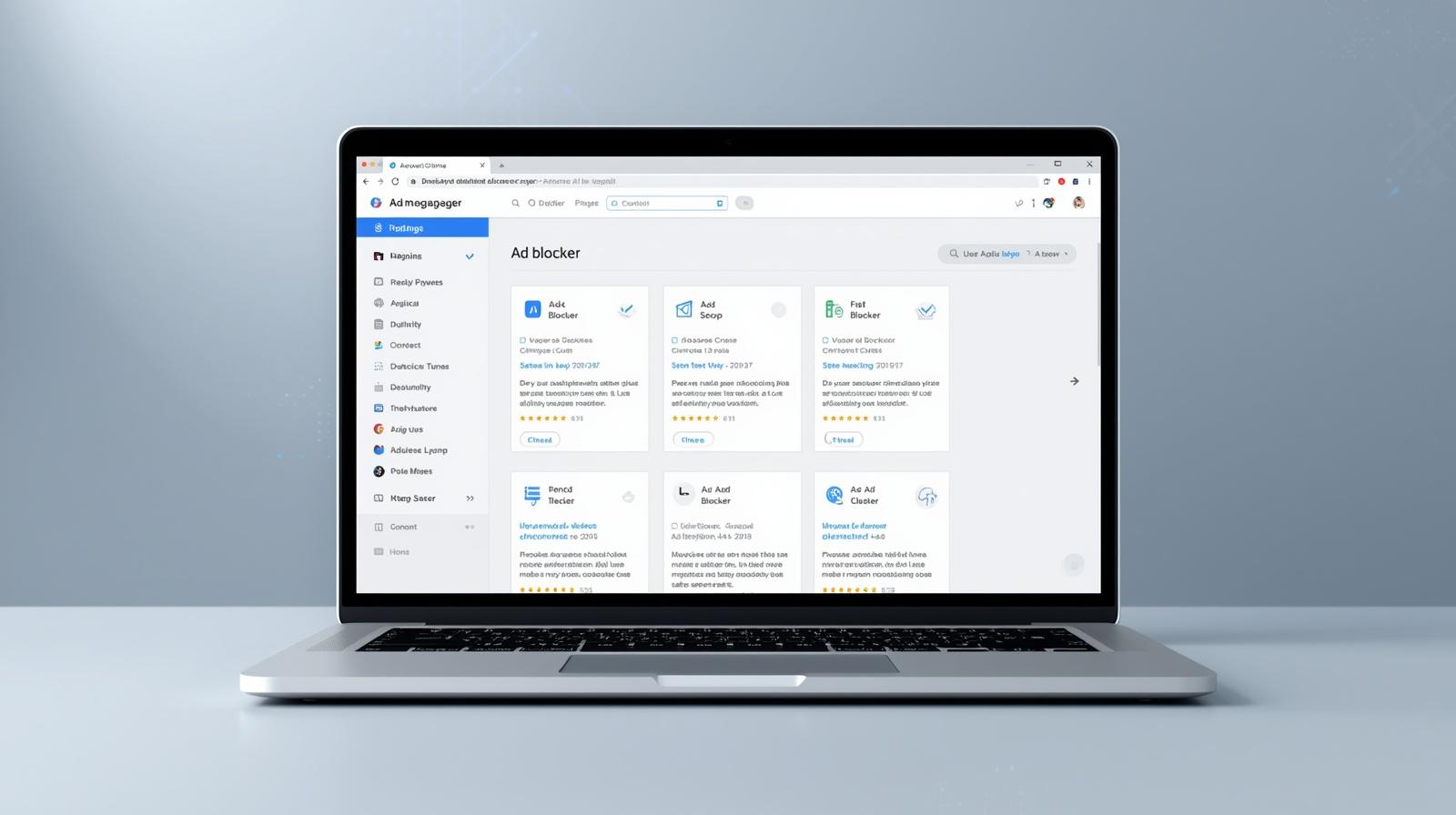
The web is an essential part of our lives, but by 2026, it has become an absolute obstacle course of intrusive ads. We’ve moved far beyond simple sidebar banners; today, we’re dealing with aggressive auto-playing videos, screen-hijacking pop-ups, and hidden trackers that shadow your every move. This isn’t just annoying — it’s a privacy nightmare that bogs down your device and drains your battery.
Choosing the right Ad Blocker to protect your digital space is no longer a luxury; it’s a necessity for a usable internet experience. While hundreds of options are available, they aren’t created equal. Some “blockers” actually harvest your data, others are massive resource hogs, and many simply can’t keep up with modern ad algorithms.
What Sets Ad Blockers Apart?
At first glance, every ad blocker seems to do the same thing: hide ads. However, the technology under the hood varies significantly. The main difference lies in how a program identifies and stops intrusive content.
Basic services rely on “blacklists”—databases of known ad server addresses that they simply block. More advanced tools use “cosmetic filtering,” which analyzes the page code to “clean up” the empty spaces left behind by blocked banners, keeping the site’s layout intact. Another critical factor is the ability to bypass anti-ad-block scripts. Many modern websites can detect when you’re using protection and will lock you out; the best blockers stay invisible to these detection systems.
Understanding the Different Types of Blockers
To find your perfect match, you need to know the categories:
- Browser Extensions: The most popular choice. They’re easy to install and work directly within Chrome, Firefox, or Edge with granular, site-specific settings.
- Standalone Desktop & Mobile Apps: These run at the OS level, blocking ads not just in your browser, but also in apps, games, and messengers.
- DNS Blockers: These work at the network level. By changing your network settings, ads are filtered out before they even hit your device. This saves data but can sometimes leave “holes” in a website’s design.
- Built-in Browser Solutions: Some browsers have native filters, but these are often limited since many browser developers also happen to be in the advertising business.
5 Key Criteria for a Top-Tier Ad Blocker
Don’t just grab the first app you see in the store. Evaluate your options based on these five points:
- Speed and Resource Impact: A good blocker shouldn’t make your computer feel sluggish. If pages take longer to load after installation, the extension is poorly optimized.
- Privacy and Data Policy: This is the big one. Check if the developer tracks your browsing history. Ironically, some “privacy tools” make money by selling user data to the highest bidder, whereas ad blocker extension for Chrome maintains a strict no-tracking policy.
- Filtering Quality (especially YouTube): Blocking ads on video platforms is the ultimate test in 2026. Make sure the service effectively kills pre-rolls and mid-roll interruptions.
- Update Frequency: Advertisers find new workarounds every day. If a blocker’s database hasn’t been updated in weeks, it’s already obsolete.
- User Experience: You should be able to whitelist a site or manually block an element with a single click.
Free vs. Paid Ad Blockers: Is It Worth the Upgrade?
The “Free vs. Paid” debate is constant. While some believe you “get what you pay for” in terms of server support and developer time, the market has shifted. Premium versions often bundle in extras like VPNs or parental controls.
However, ethical free models do exist. Some top-performing tools operate on donations or transparent partnerships that don’t compromise user privacy. The golden rule: if you go free, check the company’s reputation. You shouldn’t have to pay for a “premium” experience when some free alternatives actually outperform paid ones.
Why Stands Ad Blocker for Chrome Leads the Pack
Among the sea of extensions, Stands Ad Blocker for Chrome stands out. In 2026, following Google’s full transition to Manifest V3, many legacy blockers struggled to adapt. Stands, however, evolved to stay incredibly effective under the new standards.
The real advantage here is the comprehensive approach. It doesn’t just hide banners; it prevents them from loading at the network request level. This means your browser uses less memory and your laptop battery lasts longer. Furthermore, Stands follows a “clean web” philosophy — providing top-tier protection for free without selling out user data. It’s a full-scale shield against everything from standard banners to malicious pop-ups and scripts.
Who is Stands Ad Blocker For?
This tool is a universal fit, but it’s a game-changer for these groups:
- Families: With built-in content filtering, parents can rest easy knowing their kids won’t run into “adult” ads or shock content while doing homework.
- Streamers and Power Users: If you live on YouTube or Twitch, this blocker ensures your content is never interrupted by mid-roll ads.
- Privacy Enthusiasts: It aggressively blocks social media trackers and scripts that try to build your “digital footprint” for marketing purposes.
- Low-Spec PC Owners: By optimizing RAM usage and cutting out heavy ad scripts, Stands actually makes your browser run noticeably faster.
How to Set Up Stands Ad Blocker in Seconds
You don’t need to be a tech expert to get protected. The setup is lightning-fast:
- Head to the Chrome Web Store.
- Search for Stands Ad Blocker.
- Click “Add to Chrome.”
- Confirm the installation in the pop-up.
That’s it. The icon will appear in your toolbar (we recommend “pinning” it). The protection kicks in immediately, and you can click the icon at any time to see your live stats on blocked ads.
FAQ
Does an ad blocker affect my browser’s security?
Yes — for the better. It blocks “malvertising” (malicious ads) and phishing links, acting as an extra layer of defense against malware and data theft.
Can I turn off the blocker for specific sites?
Absolutely. Just click the extension icon and hit the toggle to “Disable on this site.” This is a great way to support your favorite creators or fix display issues on specific pages.